How to Forward an Email as an Attachment

How do I Forward an Email as attachment in Outlook?
In Outlook, the Forward as Attachment feature provides a way to forward complete copy of one or messages. When this feature is used the forwarded message appears as an attachment to the recipient and preserves important details that would be lost when forwarded normally.
- Select the message in the list view.
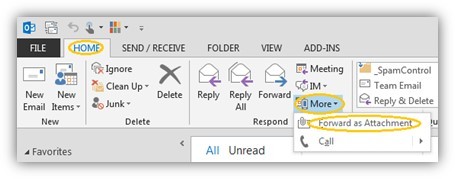
- Find the Home or Message ribbon tab at the top.
- In the Respond group click the More, then click Forward as Attachment.
- A new email opens with the selected message attached as a .eml file — add recipients, subject, and message, then send.
Notes:- To improve communication and appease spam filters we recommend that you fill in the message subject and body appropriately before sending.
- Keyboard Shortcut: Ctrl + Alt + f
Other Clients
Outlook on the Web (Outlook.com / Office 365)
-
Select the message(s) you want to forward.
-
Click the More actions menu (
...) in the toolbar. -
Choose Forward as Attachment.
(If you don’t see it, select multiple emails — the option appears in the toolbar.)
Gmail (Web)
Gmail doesn’t have a one-click “Forward as attachment” for single emails, but you can:
-
For multiple emails:
-
Go to your inbox, check the boxes for the messages.
-
Click the three-dot menu and choose Forward as attachment.
-
-
For a single email:
Download it (More → Download message) and then attach that.emlfile to a new email.
Apple Mail (Mac)
-
Select the email you want to forward.
-
Go to Message → Forward as Attachment in the menu bar.
-
A new message opens with the email attached.
 Call Now!